> ## Documentation Index
> Fetch the complete documentation index at: https://adminroletesting-justin-client-exports.mintlify.site/llms.txt
> Use this file to discover all available pages before exploring further.
# Single sign-on (SSO)
> Set up single sign-on with SAML or OIDC identity providers like Okta, Azure AD, and Google Workspace for secure team authentication.
SSO is available on [Enterprise plans](https://mintlify.com/pricing?ref=sso).
Enterprise admins can configure SAML SSO for Okta or Microsoft Entra directly from the Mintlify dashboard. For other providers like Google Workspace or Okta OIDC, [contact us](mailto:support@mintlify.com) to set up SSO.
## Configure SSO
### Okta
1. In your Mintlify dashboard, navigate to the [Single Sign-On](https://app.mintlify.com/settings/organization/sso) page.
2. Click **Configure**.
3. Select **Okta SAML**.
4. Copy the **Single sign on URL** and **Audience URI**.
1. In Okta, under **Applications**, create a new app integration using SAML 2.0.
2. Enter the following from Mintlify:
* **Single sign on URL**: the URL you copied from your Mintlify dashboard
* **Audience URI**: the URI you copied from your Mintlify dashboard
* **Name ID Format**: `EmailAddress`
3. Add these attribute statements:
| Name | Name format | Value |
| ----------- | ----------- | ---------------- |
| `firstName` | Basic | `user.firstName` |
| `lastName` | Basic | `user.lastName` |
In Okta, go to the **Sign On** tab of your application and copy the metadata URL.
Back in the Mintlify dashboard, paste the metadata URL and click **Save changes**.
### Microsoft Entra
1. In your Mintlify dashboard, navigate to the [Single Sign-On](https://app.mintlify.com/settings/organization/sso) page.
2. Click **Configure**.
3. Select **Microsoft Entra ID SAML**.
4. Copy the **Single sign on URL** and **Audience URI**.
1. In Microsoft Entra, navigate to **Enterprise applications**.
2. Click **New application**.
3. Click **Create your own application**.
4. Select "Integrate any other application you don't find in the gallery (Non-gallery)."
1. In Microsoft Entra, navigate to **Single Sign-On**.
2. Click **SAML**.
3. Under **Basic SAML Configuration**, enter the following:
* **Identifier (Entity ID)**: the Audience URI from Mintlify
* **Reply URL (Assertion Consumer Service URL)**: the Single sign on URL from Mintlify
Leave the other values blank and click **Save**.
1. In Microsoft Entra, navigate to **Attributes & Claims**.
2. Select **Unique User Identifier (Name ID)** under "Required Claim."
3. Change the Source attribute to `user.primaryauthoritativeemail`.
4. Under **Additional claims**, create the following:
| Name | Value |
| ----------- | ---------------- |
| `firstName` | `user.givenname` |
| `lastName` | `user.surname` |
Under **SAML Certificates**, copy the **App Federation Metadata URL**.
Back in the Mintlify dashboard, paste the metadata URL and click **Save changes**.
In Microsoft Entra, navigate to **Users and groups**. Assign the users who should have access to your Mintlify dashboard.
## JIT provisioning
When you enable JIT (just-in-time) provisioning, users who sign in through your identity provider are automatically added to your Mintlify organization.
JIT provisioning only works for IdP-initiated login. Users must sign in from your identity provider (Okta dashboard or Microsoft Entra portal) rather than starting from the Mintlify login page.
To enable JIT provisioning, you must have SSO enabled. Navigate to the [Single Sign-On](https://app.mintlify.com/settings/organization/sso) page in your dashboard, set up SSO, and then enable JIT provisioning.
## Enforce SSO-only sign-in
Organization admins can require everyone in the organization to sign in through your identity provider. When SSO enforcement is on, Mintlify rejects password, magic link, and Google OAuth sign-ins.
1. Navigate to the [Single Sign-On](https://app.mintlify.com/settings/organization/sso) page in your dashboard.
2. Confirm that SSO is configured and verified end-to-end.
3. Toggle **Enforce SSO-only sign-in** on.
Mintlify blocks SSO enforcement if turning it on would lock every owner out of the organization. Configure at least one breakglass email or confirm an owner can sign in through your IdP before enforcing.
To stop enforcing SSO, toggle the setting off. Other sign-in methods become available again immediately.
## Verified domains
Add domains your organization owns so Mintlify can tie sign-ins and invitations back to a trusted identity. You can add up to five verified domains per organization.
1. Navigate to the [Single Sign-On](https://app.mintlify.com/settings/organization/sso) page in your dashboard.
2. In the **Verified domains** section, click **Add domain**.
3. Enter the domain (for example, `example.com`) and click **Add**.
4. Mintlify generates a verification token. Add it as a DNS TXT record on the domain.
5. Return to the dashboard and click **Verify**. The status changes from **Pending** to **Verified** once the record propagates.
To remove a domain, click the delete button beside it.
## Breakglass emails
Designate emergency-access accounts that can sign in even when SSO enforcement is on or your identity provider is unreachable. Use breakglass emails to recover access if your IdP has an outage or a misconfiguration locks members out.
1. Navigate to the [Single Sign-On](https://app.mintlify.com/settings/organization/sso) page in your dashboard.
2. In the **Breakglass emails** section, add the email addresses of the org members who should retain non-SSO access.
3. Click **Save changes**.
Use breakglass emails for owner accounts that are not tied to your primary IdP, store the credentials in a secure password manager, and review the list whenever team membership changes.
Each breakglass email must already belong to a member of your organization. Members listed as breakglass can sign in with a password, magic link, or Google OAuth even when SSO enforcement is on.
## Map RBAC roles with SAML groups
Assign [roles](/dashboard/roles) to users based on their identity provider group membership. When a user signs in through SSO, Mintlify reads the `groups` attribute from the SAML assertion and maps those groups to dashboard roles.
### Configure group attribute statements
Add a `groups` attribute statement to your SAML identity provider configuration. The attribute must use the `unspecified` name format.
The resulting SAML assertion should include an `AttributeStatement`.
```xml Example SAML assertion theme={null}
Everyone
Engineering
Admins
```
**Key requirements:**
* The attribute name must be `groups` (case-sensitive)
* The name format must be `urn:oasis:names:tc:SAML:2.0:attrname-format:unspecified`
* Each group the user belongs to should be a separate `AttributeValue` element
In your Okta SAML app configuration, add a group attribute statement:
| Name | Name format | Filter | Value |
| -------- | ----------- | ------------- | ----- |
| `groups` | Unspecified | Matches regex | `.*` |
Adjust the filter to match the specific groups you want to send to Mintlify.
In your Microsoft Entra enterprise application:
1. Navigate to **Single Sign-On** > **Attributes & Claims**.
2. Click **Add a group claim**.
3. Select which groups to include (all groups or specific ones).
4. Under **Advanced options**, check **Customize the name of the group claim** and set the name to `groups`.
Once configured, Mintlify maps the group names from the SAML assertion to roles in your organization. To set up or modify group-to-role mappings, reach out to your Mintlify account representative.
## Change or remove SSO provider
1. Navigate to the [Single Sign-On](https://app.mintlify.com/settings/organization/sso) page in your dashboard.
2. Click **Configure**.
3. Select your preferred SSO provider or no SSO.
If you remove SSO, users must authenticate with a password, magic link, or Google OAuth instead.
## Other providers
For providers other than Microsoft Entra or Okta SAML, [contact us](mailto:support@mintlify.com) to configure SSO.
### Google Workspace with SAML
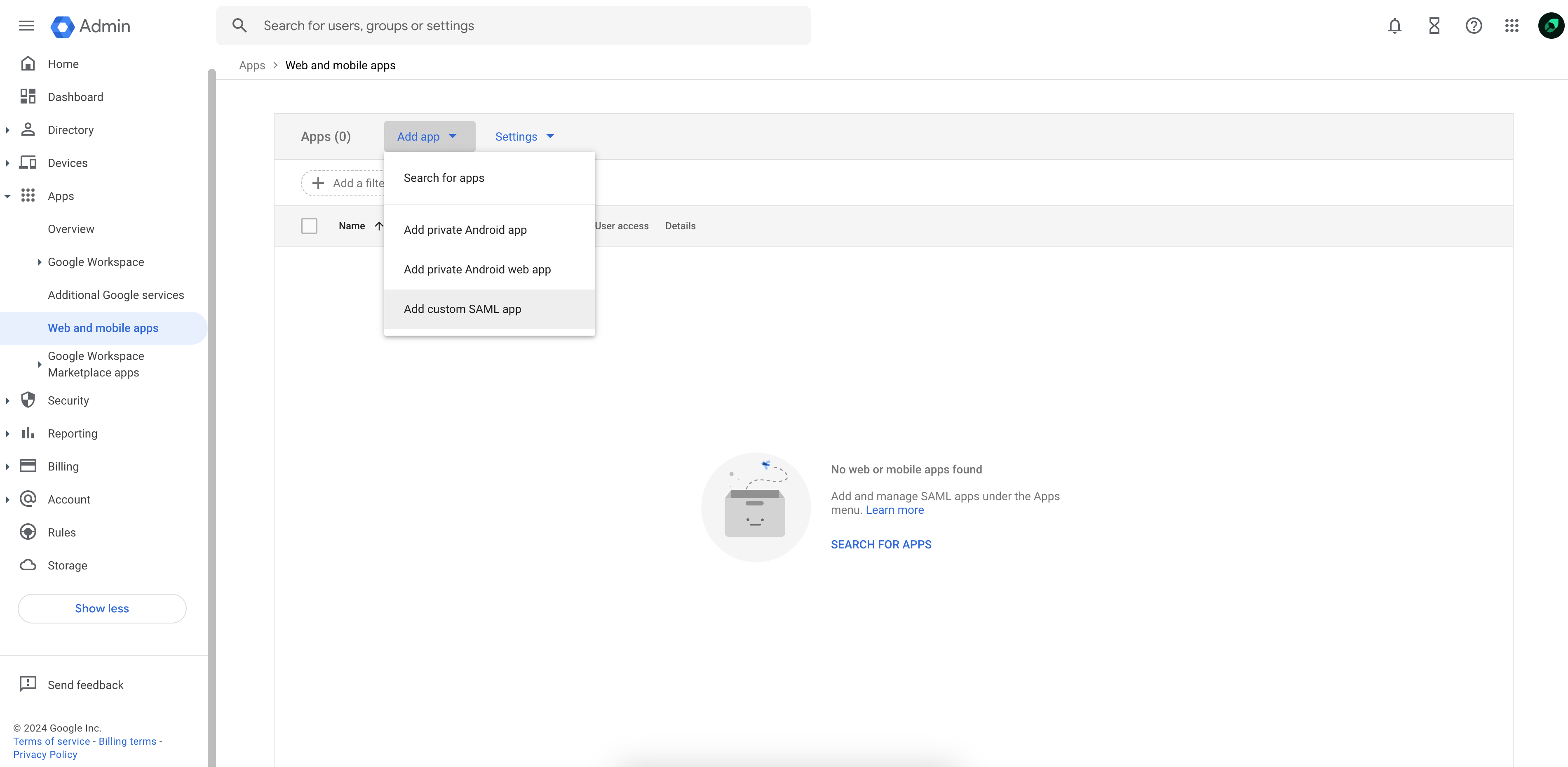
1. In Google Workspace, navigate to **Web and mobile apps**.
2. Click **Add custom SAML app** in the **Add app** dropdown.
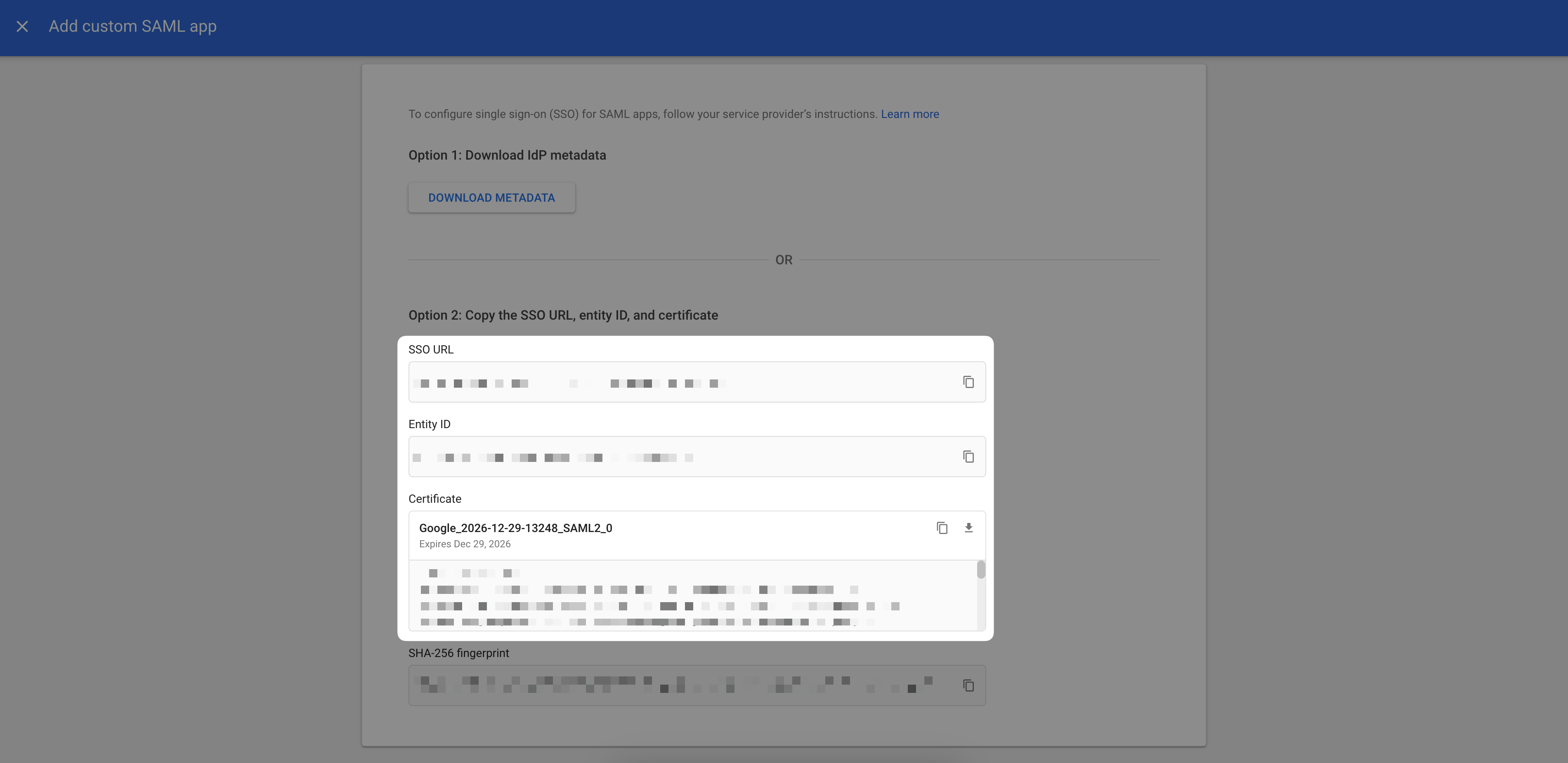
 Copy the provided SSO URL, Entity ID, and x509 certificate and send it to the Mintlify team.
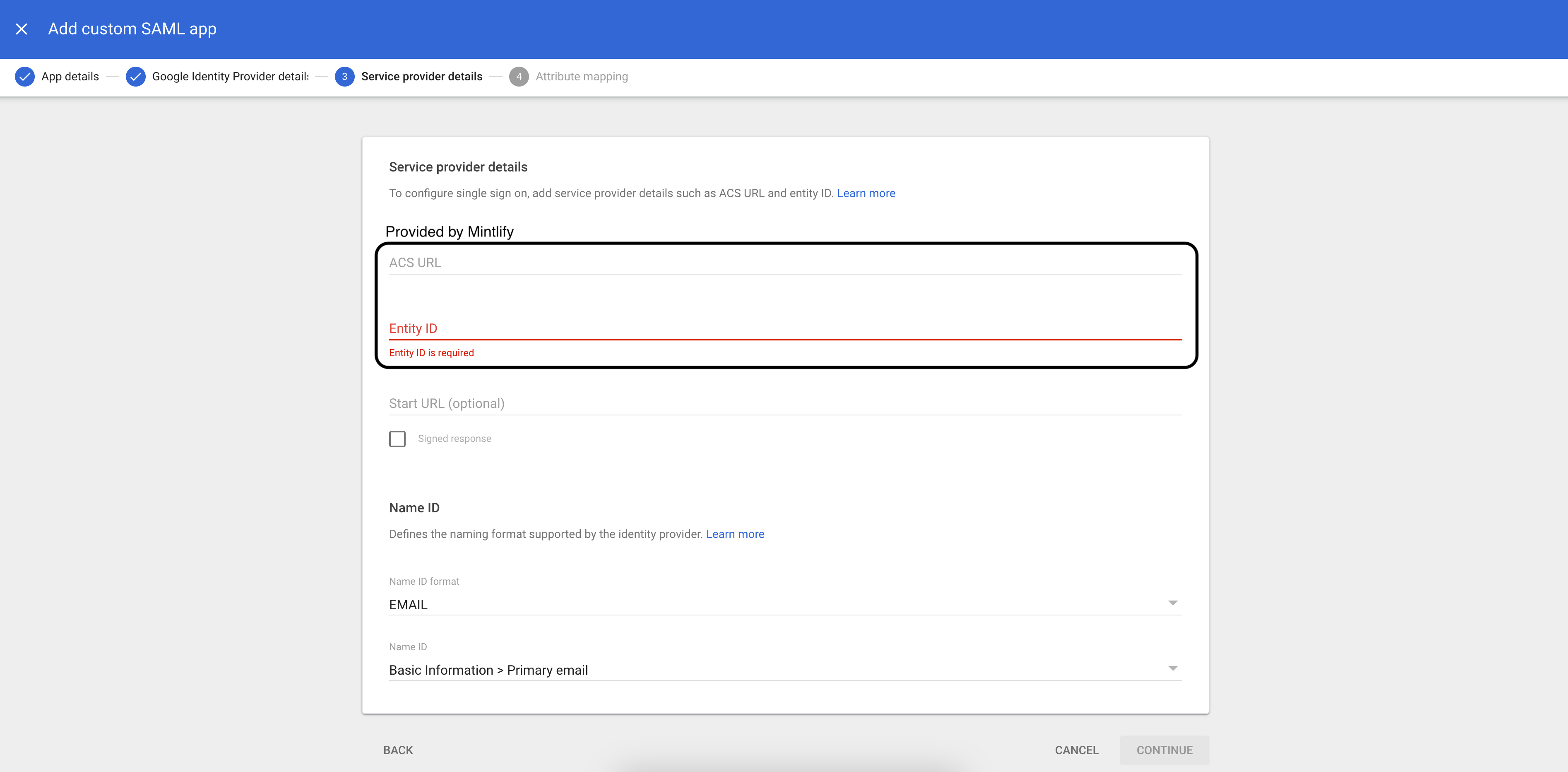
 On the Service provider details page, enter the following:
* ACS URL (provided by Mintlify)
* Entity ID (provided by Mintlify)
* Name ID format: `EMAIL`
* Name ID: `Basic Information > Primary email`
On the Service provider details page, enter the following:
* ACS URL (provided by Mintlify)
* Entity ID (provided by Mintlify)
* Name ID format: `EMAIL`
* Name ID: `Basic Information > Primary email`
 On the next page, enter the following attribute statements:
| Google Directory Attribute | App Attribute |
| -------------------------- | ------------- |
| `First name` | `firstName` |
| `Last name` | `lastName` |
Once this step is complete and users are assigned to the application, let our team know and we'll enable SSO for your account.
### Okta (OIDC)
In Okta, under **Applications**, create a new app integration using OIDC. Choose the **Web Application** application type.
Select the authorization code grant type and enter the Redirect URI provided by Mintlify.
Navigate to the **General** tab and locate the client ID and client secret. Securely provide these to us along with your Okta instance URL (for example, `.okta.com`). You can send these via a service like 1Password or SendSafely.
On the next page, enter the following attribute statements:
| Google Directory Attribute | App Attribute |
| -------------------------- | ------------- |
| `First name` | `firstName` |
| `Last name` | `lastName` |
Once this step is complete and users are assigned to the application, let our team know and we'll enable SSO for your account.
### Okta (OIDC)
In Okta, under **Applications**, create a new app integration using OIDC. Choose the **Web Application** application type.
Select the authorization code grant type and enter the Redirect URI provided by Mintlify.
Navigate to the **General** tab and locate the client ID and client secret. Securely provide these to us along with your Okta instance URL (for example, `.okta.com`). You can send these via a service like 1Password or SendSafely.